Want to send and receive WhatsApp messages through Twilio? You’ll first need to register a WhatsApp-enabled phone number in the Twilio Console. This guide walks you through every step — from prerequisites to going live.
Prerequisites
Before you start, make sure you have the following ready:
- ✅ An upgraded Twilio account with a linked payment method (upgrade via Admin → Account billing → Upgrade account)
- ✅ A WhatsApp-compatible phone number — either a Twilio number or your own
- ✅ A Meta Business Portfolio with administrator access and full permissions
- ✅ A Facebook account linked to your Meta Business Portfolio
Phone Number Requirements
Your phone number must meet these requirements:
- It must satisfy WhatsApp’s compatibility requirements
- It must not already be registered with WhatsApp (personal or business)
- Non-Twilio numbers must be able to receive SMS or voice calls for OTP verification
- Numbers behind an IVR system cannot receive OTPs and won’t work
Tip: If your company already has a Meta Business Portfolio, request administrator access with full permissions — this is required to create a WhatsApp Business Account (WABA) during sign-up. If you don’t have one, you can create it during the process, but you’ll need to complete Meta Business Verification before moving into production.
The 7-Step Registration Process
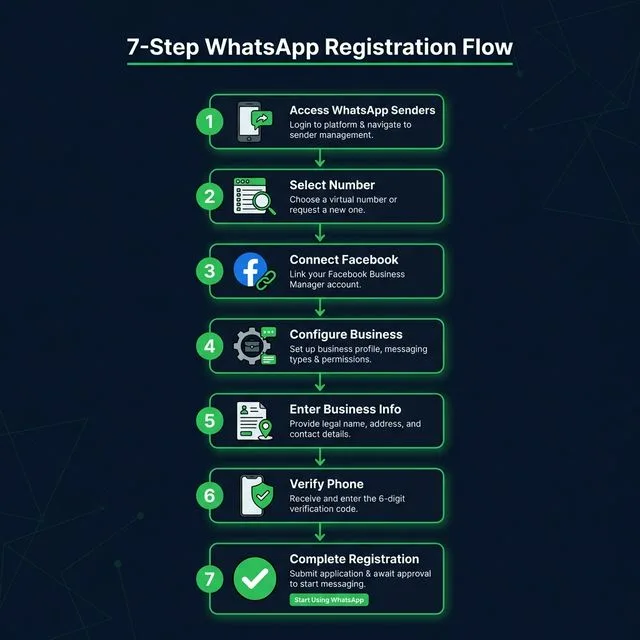
Step 1: Access WhatsApp Senders
- Log into your Twilio Console
- Navigate to Messaging → Senders → WhatsApp Senders
- Click Create new sender
Step 2: Select Your Number
- Under “Select a phone number to register,” choose either a Twilio phone number or a Non-Twilio phone number
- If using your own number, enter it in the field
- Click Continue
Step 3: Connect to Facebook
- Under “Link WhatsApp Business Account with your number,” click Continue with Facebook
- A Self Sign-up pop-up window will open on facebook.com
⚠️ Critical warnings:
- Do not close either the Facebook pop-up or the Twilio Console window
- Do not share the pop-up window URL with anyone — the registration will fail
- Complete all steps in the same browser so Meta and Twilio can exchange data properly
- Log into Facebook or continue with your existing session
- Allow Twilio to manage your WhatsApp Business Account
Step 4: Configure Business Details
- Select your Meta Business Portfolio (or create a new one)
- Create or select your WhatsApp Business Account (WABA)
- Create a new WhatsApp Business profile
Important WABA rules:
- First sender? Create a new WABA — don’t select one created outside of Twilio (e.g., with another provider)
- Additional senders? You must select the same WABA used for your first sender
- Twilio maintains a one-to-one relationship between a Twilio account and a WABA — you can’t use multiple WABAs in one account
Step 5: Enter Business Information
Fill in the required and optional fields:
| Field | Required | Notes |
|---|---|---|
| WhatsApp Business Account Name | ✅ | Internal use only |
| WhatsApp Business Display Name | ✅ | What your customers see — must match your Meta Business Portfolio name |
| Category | ✅ | Describes your business type |
| Business Description | ❌ | Optional but recommended |
| Website | ❌ | Optional but recommended |
⚠️ Display Name Warning: Meta reviews your display name after registration. If they reject it, your number is limited to 250 business-initiated messages per 24 hours, and Meta may disconnect the sender entirely. Always use your actual company name and follow Meta’s display name guidelines.
Step 6: Verify Your Phone Number
For Twilio numbers:
- Switch back to the Twilio Console window
- Copy the verification code displayed
- Paste it into the Facebook pop-up window
- Click Next
For non-Twilio numbers:
- Enter your number in the Facebook window
- Select verification method — SMS or Voice call
- Receive and enter the verification code
Step 7: Complete Registration
- Review and confirm Twilio’s access request
- The pop-up window closes automatically
- Twilio starts the registration process — this might take a few minutes
- The Console automatically refreshes to show your registered sender
✅ Your registered number will now appear in WhatsApp Senders! You can click Edit Sender to:
- Set your inbound message webhooks
- Update your WhatsApp Business profile and profile picture
- Add the sender to a Messaging Service
- Manage or delete the sender
Post-Registration: Meta Business Verification
You can start messaging immediately after registration. However, to scale in production and increase messaging limits, you’ll need to complete Meta Business Verification.

Note: Business verification is free and is not the same as Meta’s paid “Meta Verified” subscription.
How to Get Verified
- Follow the steps in How to verify your business on Meta
- Check your status in Meta’s Security Center
- Upload required business documents — accepted types include:
- Certificate or Articles of Incorporation
- Business registration or license document
- Government-issued business tax documents (self-filed documents not accepted)
- Business bank statements
- Utility bills (for address and phone verification only, not legal name verification)
- Processing time varies by region and can take several weeks — start early to avoid delays
Without Verification, You’re Limited To:
| Limit | Value |
|---|---|
| WhatsApp senders per Twilio account | 2 |
| Business-initiated conversations per 24 hours | 250 |
With Verification, You Unlock:
- Higher messaging limits — starting at 1,000 templates/day, scaling up to 100,000/day for verified businesses with good quality ratings (as of Q1/Q2 2026)
- Portfolio-based limits — since October 2025, messaging limits apply to your entire business portfolio, not per phone number, so new numbers immediately access your highest tier
- More than 2 WhatsApp senders per account
- Eligibility to request a WhatsApp Official Business Account (OBA) with the green checkmark badge
Key Warnings to Remember
- 🚫 Use your company name as the display name — WhatsApp rejects names that don’t match your Meta Business Portfolio, and rejected names limit you to 250 messages/day
- 🔒 Complete all steps in the same browser session — don’t copy URLs or share the pop-up link with other users
- 📱 All WhatsApp Senders in a Twilio account must be in the same WABA — don’t reuse a WABA from another provider
- ⏳ Without Meta verification, you’re limited to 2 senders and 250 conversations / 24 hours
- 📵 US marketing pause — as of April 2025, marketing template messages to US phone numbers (+1) are paused by Meta
- 💰 New pricing model — as of July 2025, WhatsApp uses per-message pricing instead of per-conversation billing
What’s Next?
Now that your WhatsApp number is registered with Twilio, you can:
- Connect your Twilio account to Mango to manage WhatsApp messages from your iPhone
- Set up WhatsApp customer support with automated replies and templates
- Create message templates in the Twilio Console for outbound messaging
With Mango, all your WhatsApp messages appear alongside calls, SMS, and RCS — one app, one number, all channels.

Need help with WhatsApp registration? Reach out to us — we’re happy to walk you through it.