TL;DR: Build a professional IVR phone menu with Twilio Studio — no code required. Callers hear a welcome message, pick options with their keypad, and pressing “0” forwards the call to your iPhone through Mango. It works with your existing Twilio number and takes about 15 minutes to set up. Mango is free for one number — you only pay Twilio’s per-minute call rates.
What Is a Twilio Studio IVR?
An IVR (Interactive Voice Response) system is the automated phone menu you hear when calling a business: “Press 1 for business hours, press 2 for account info, press 0 to speak with an agent.”
Twilio Studio is Twilio’s visual, drag-and-drop editor for building call flows — including IVR menus. You connect widgets on a canvas instead of writing code, making it accessible to anyone with a Twilio account.
When you integrate a Twilio Studio IVR with Mango, your callers get a professional phone experience with automated responses for common questions, while pressing “0” (or any key you choose) forwards the call straight to your iPhone or iPad through Mango.
Why Use Twilio Studio IVR with Mango?
| Feature | Without IVR | With Twilio Studio + Mango |
|---|---|---|
| Incoming calls | Every call rings your phone | Only live-support calls ring — the rest are handled automatically |
| Business hours | Callers hear nothing or voicemail | Automated message plays your hours, location, etc. |
| Customer experience | Generic ring-and-wait | Professional menu with self-serve options |
| Call volume | Handle every call manually | Automated answers reduce call load by 40–60% |
| Team support | Single device | Same Mango number on multiple iPhones and iPads |
Prerequisites
Before you start, make sure you have:
- A Twilio account with access to Studio (paid account required)
- A Twilio phone number (costs ~$1.15/month)
- Mango installed on your iPhone — download from the App Store
- Your Mango Client ID (found in Mango → Settings → Client ID)
New to Twilio? Read our guide: What Is Twilio and Why You Need Mango
Step 1: Open Twilio Studio
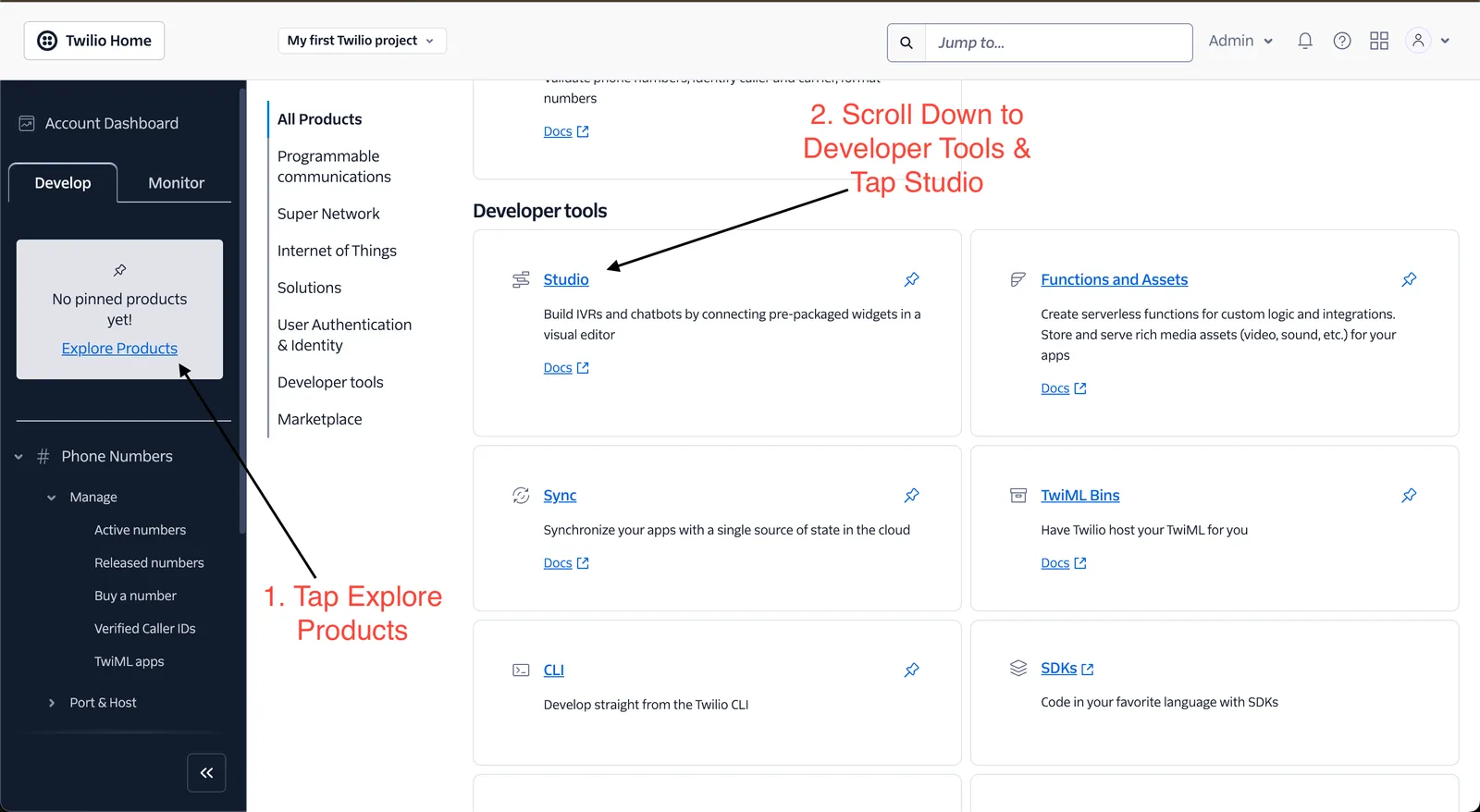
Log into Twilio Console, then navigate to Studio:
- Click Explore Products in the left sidebar
- Scroll down to Developer Tools
- Click Studio
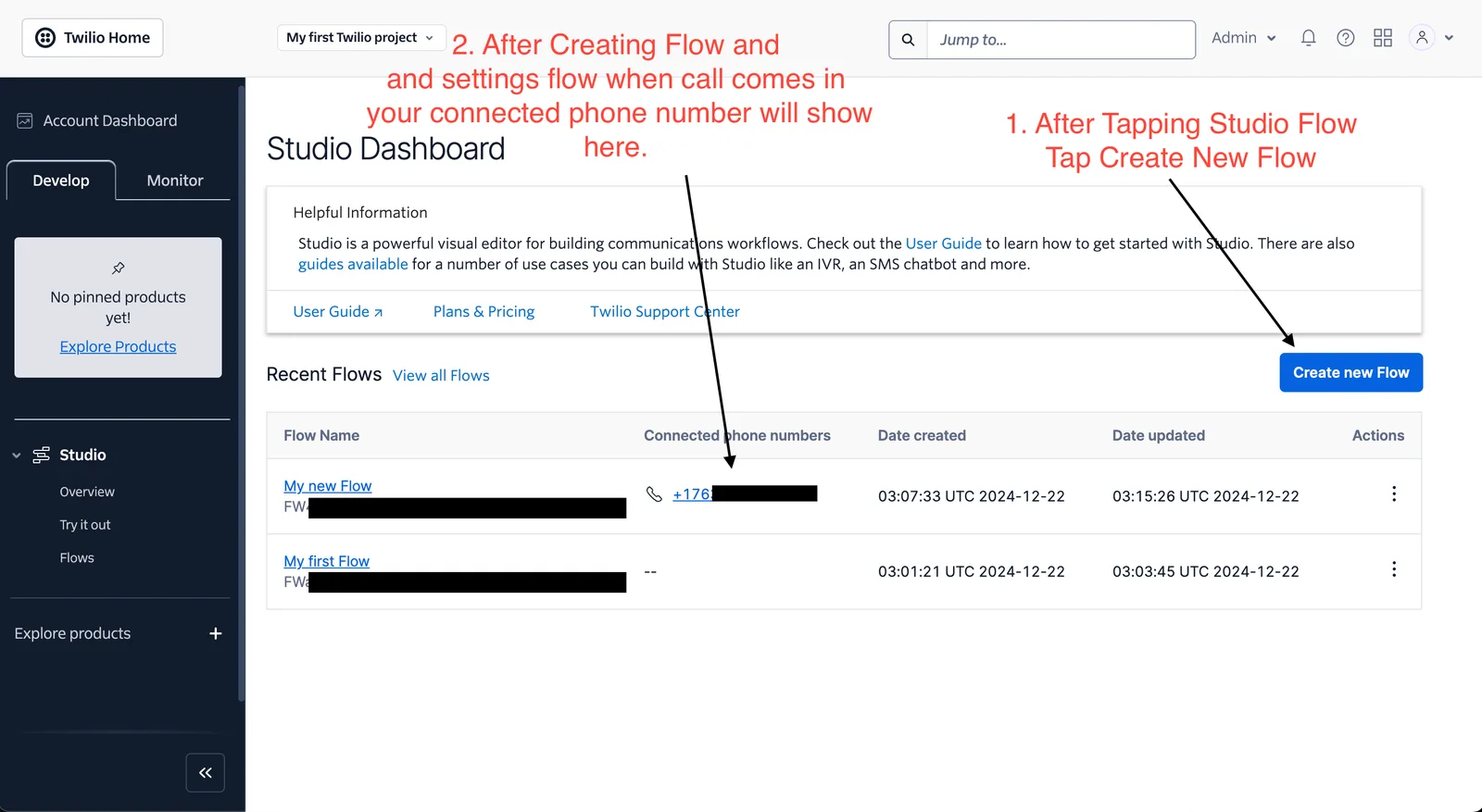
Once in Studio, click the Create New Flow button. Give your flow a descriptive name like “Main IVR” or “Customer Support Menu.”
Step 2: Build the IVR Menu
Your Studio flow starts with a Trigger widget — this is where incoming calls enter the flow. Now you’ll build the menu:
Add a Gather Input Widget
- Drag a Gather Input On Call widget onto the canvas
- Connect it to the Incoming Call output of the Trigger widget
- Configure the widget:
- Say or Play Message: Type your welcome message, e.g.: “Hi there, Welcome to Mango. How can we direct your call? Press 1 for business hours, press 2 for location, press 0 to speak with an agent.”
- Stop Gathering After: 1 digit
- Timeout: 5 seconds
Add a Split Widget for Routing
- Drag a Split Based On… widget below the Gather widget
- Connect the User Pressed Keys output to the Split widget
- Set the Variable to Test to:
{{widgets.Welcome_Message.Digits}} - Add conditions:
- If value equal_to 1 → connect to a Say/Play widget with your business hours
- If value equal_to 2 → connect to a Say/Play widget with your location
- NEW → this is where you’ll connect the Mango call forwarding (next step)
Step 3: Connect Calls to Mango
This is the key step — forwarding live support calls to your iPhone through Mango.
- Drag a Connect Call To widget onto the canvas
- Connect it to the output for your “speak with agent” option (e.g., “if value equal_to 0” from the Split widget)
- Configure the widget:
- Connect Call To: Select Client User
- Client User: Enter your Mango Client ID
- Caller ID: Use
{{contact.channel.address}}(passes the caller’s real number) - Record Call: Toggle on if you want call recording
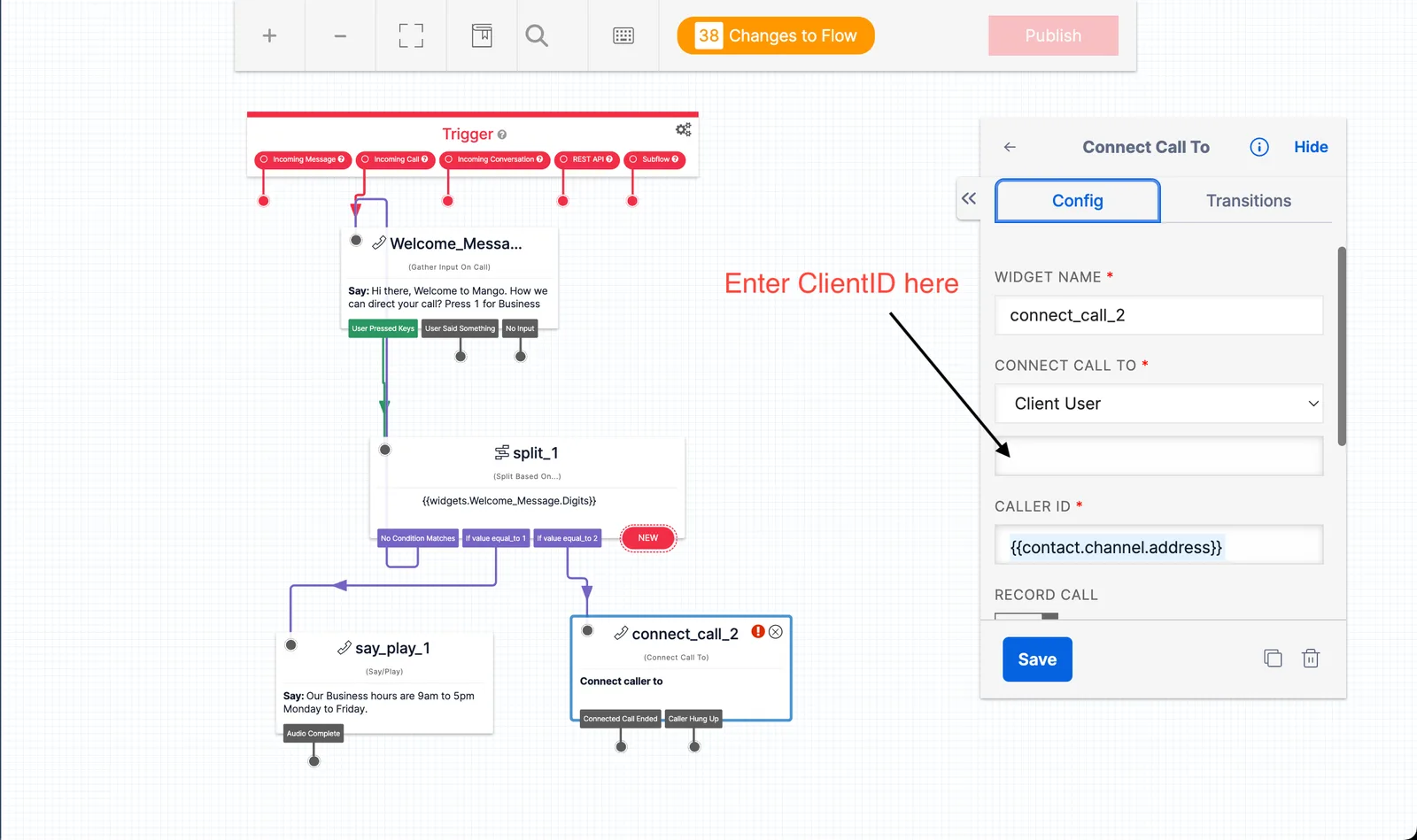
Where to find your Mango Client ID: Open Mango on your iPhone → Settings → scroll to Client ID → copy the value.
Caution: Symptoms When Mango Does Not Show the Receiving Twilio Number
The Connect Call To widget is fine when you only need the IVR to ring Mango. But if your business uses multiple Twilio numbers, you may also want Mango’s incoming call screen to show the exact To number the customer dialed.
Watch for these symptoms:
- Mango rings, but the incoming call notification does not show which Twilio number received the call
- The caller’s number appears, but your sales/support/location Twilio number is missing
- The issue happens only when the call reaches Mango through a Twilio Studio flow
- Direct TwiML or non-Studio call paths still show the receiving Twilio number correctly
This usually means the Studio handoff reached Mango without custom Client Parameters. Studio’s Connect Call To widget does not give you a place to pass metadata like received_on="{{To}}".
If you want Mango to keep showing the To number, use Add TwiML Redirect instead of Connect Call To for the final Mango handoff. Follow this guide:
Show the Receiving Twilio Number in Mango When Calls Come from Twilio Studio
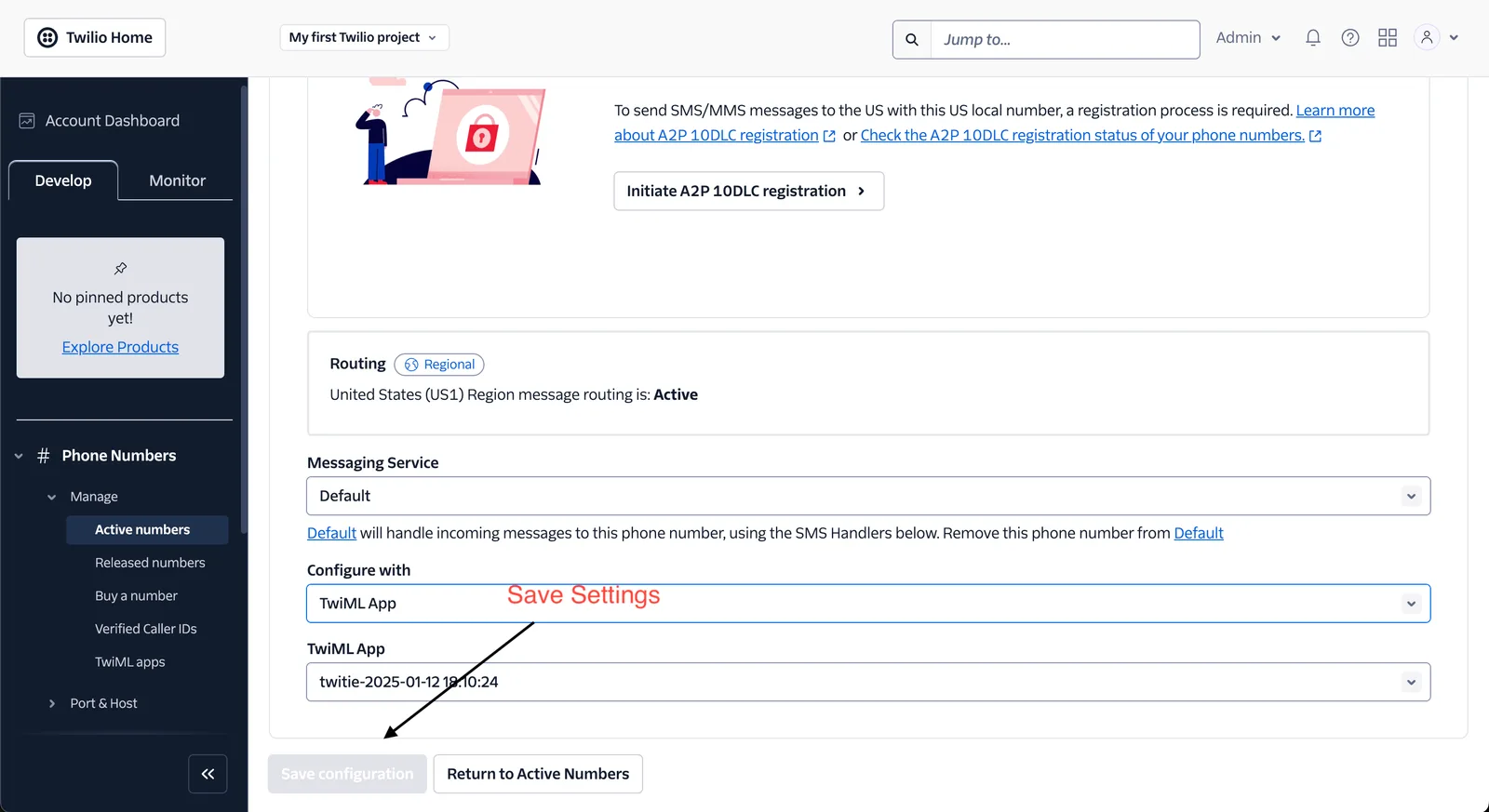
Step 4: Point Your Phone Number to the Studio Flow
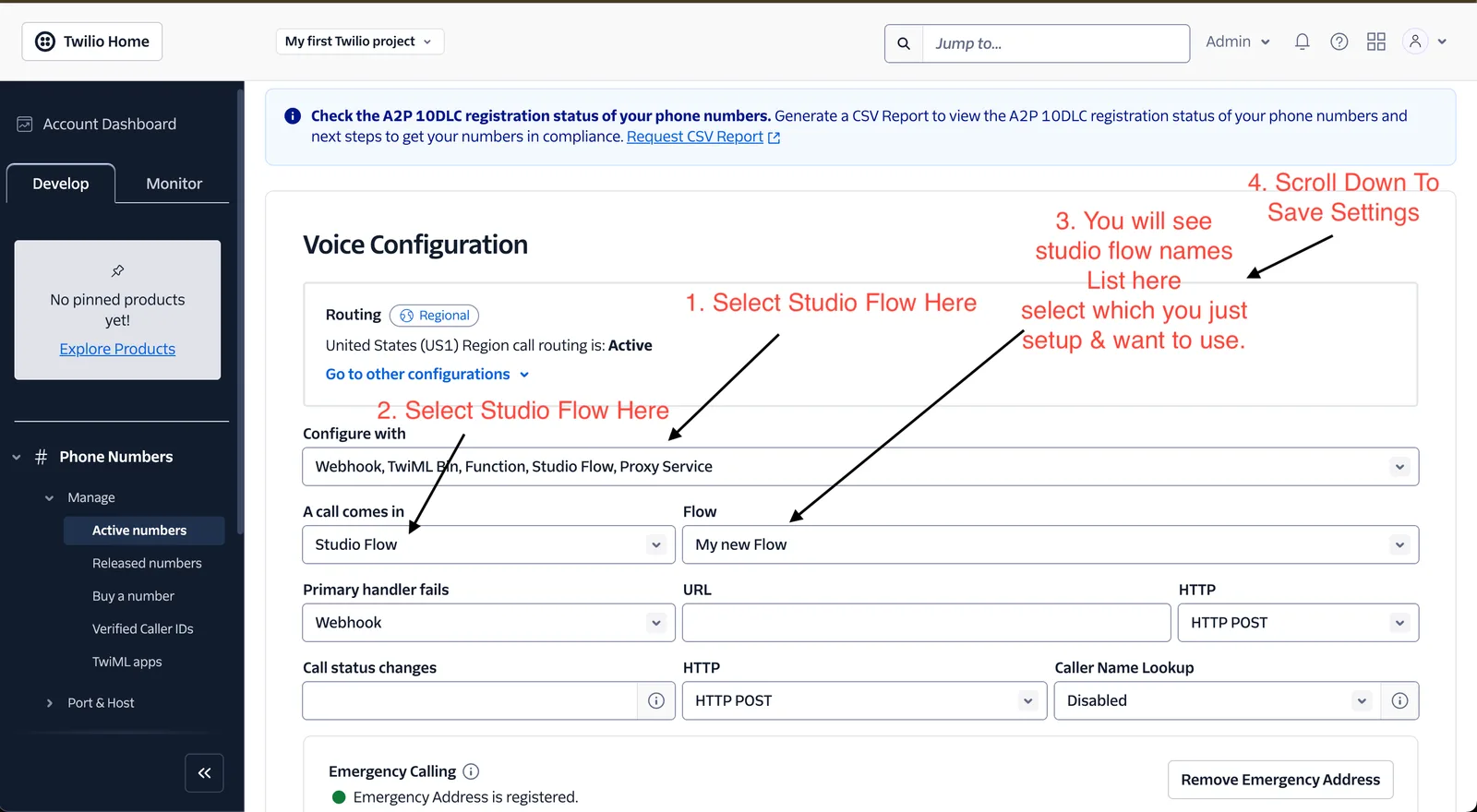
Your IVR flow is built — now tell Twilio to route calls through it:
- Go to Phone Numbers → Manage → Active Numbers
- Click the phone number you want to use
- Scroll to Voice Configuration
- Set Configure with to: Studio Flow
- Under A call comes in → Flow, select your newly created flow
- Click Save
Your phone number SMS configuration stays separate. If Mango is already handling your SMS, nothing changes — your IVR only affects incoming voice calls.
Step 5: Test Your IVR
Call your Twilio number from a different phone and verify:
- ✅ You hear the welcome message
- ✅ Pressing 1 plays your business hours
- ✅ Pressing 2 plays your location info
- ✅ Pressing 0 forwards the call to Mango on your iPhone
- ✅ Your iPhone shows the caller’s real number (not the Twilio number)
Tip: Keep Twilio Studio open in your browser during testing. The Execution Logs (visible in the Studio sidebar) show the real-time path each call takes through your flow — invaluable for debugging.
Call Flow at a Glance
How Much Does IVR Cost? (Twilio + Mango vs. Everyone Else)
Traditional IVR systems charge per user per month — and the costs add up fast. Here’s how the main providers compare to Twilio Studio + Mango:
| Provider | Plan | Monthly Cost | IVR Included? |
|---|---|---|---|
| RingCentral | Core | $20/user/mo | ✅ Basic IVR |
| Nextiva | Core | $15/user/mo | ✅ Simple IVR |
| Dialpad | Standard | $15/user/mo | ✅ Basic IVR |
| MightyCall | Core | $15/user/mo | ✅ Multi-level IVR |
| Genesys Cloud | CX 1 | $75/user/mo | ✅ Advanced IVR |
| Five9 | Core | $119/user/mo | ✅ Enterprise IVR |
| On-Premise (Avaya, Cisco) | — | $4,000+/mo + $5K–$25K setup | ✅ Full control |
| Twilio Studio + Mango | Pay-as-you-go | ~$1.15/mo + $0.018/min | ✅ Visual IVR builder |
Real Cost Example: 5-Person Team
| RingCentral | Nextiva | Twilio + Mango | |
|---|---|---|---|
| Monthly platform | $100 (5 × $20) | $75 (5 × $15) | $1.15 |
| 500 min of calls | Included | Included | $9.00 |
| Monthly total | $100 | $75 | $10.15 |
| Annual total | $1,200 | $900 | $121.80 |
| Annual savings | — | — | $778 – $1,078 |
Bottom line: If your team handles fewer than ~640 minutes of calls per month, Twilio + Mango is cheaper than even the cheapest $15/user IVR plan. For most small businesses, that means saving $800–$1,000+ per year.
What You Don’t Pay With Twilio + Mango
- ❌ No per-seat license fees
- ❌ No setup or onboarding charges
- ❌ No long-term contracts
- ❌ No hardware costs
- ❌ No voice talent fees (use Twilio’s text-to-speech)
Best Practices for Your Twilio Studio IVR
Call Routing
- Set up fallback options — if no agent answers, play a “leave a message” prompt or route to voicemail via Mango’s Business Hours feature
- Configure business hours routing — use a Split widget to check the time and play an after-hours message instead of forwarding
- Add queue management — for high-volume periods, play hold music or offer a callback option
User Experience
- Keep menu options to 4–5 choices max — too many options frustrate callers
- Limit menu depth — don’t nest menus more than 2 levels deep
- Always offer a live agent option — customers should never feel trapped in automation
- Add a “repeat menu” option — e.g., “Press 9 to hear these options again”
Technical Configuration
- Test thoroughly before going live — call from multiple phones, test every keypad option
- Monitor call quality in the Twilio Console
- Set proper error handling — add “No Condition Matches” paths in your Split widget
- Enable call recording for training and compliance needs
Troubleshooting Common Issues
Calls Not Forwarding to Mango
- Verify your Mango Client ID is entered correctly in the Connect Call widget
- Check that the Connect Call To field is set to Client User (not SIP or Phone Number)
- Ensure your Studio flow connections are properly linked — look for disconnected widgets
- Confirm your phone number’s Voice Configuration points to the correct Studio Flow
Poor Audio Quality
- Check your network connectivity — Mango requires a stable internet connection (Wi-Fi or 4G/5G)
- Verify codec settings in your Twilio account
- Monitor call metrics in Twilio Voice Insights
Disconnections During Call Transfer
- Review timeout settings in your Connect Call widget — increase if calls drop before agents can answer
- Check for proper error handling — add transitions for “Connected Call Ended” and “Caller Hung Up” outputs
- Verify webhook responses are returning within Twilio’s timeout window
Advanced IVR Features
Queue Management
- Implement callback options — if all agents are busy, offer to call the customer back
- Estimated wait time — use Twilio Functions to calculate and announce queue position
- Priority queuing — route VIP customers (detected by caller ID) to a faster queue
Analytics and Reporting
Track key metrics to optimize your IVR over time:
- Average handle time — how long calls take from start to finish
- First call resolution rate — percentage of calls resolved without transfers
- IVR completion rate — how many callers make it through the menu vs. hanging up
- Transfer rates — what percentage of calls end up with a live agent
Pro tip: Use Twilio’s Studio Flow Execution Logs to see exactly which paths callers take. If 90% of callers press 0 immediately, your automated options may need better content.
Frequently Asked Questions
What is a Twilio Studio IVR?
A Twilio Studio IVR is an interactive voice response system built with Twilio’s visual drag-and-drop editor. It lets you create automated phone menus that greet callers, offer keypad options, and route calls to different destinations — including live agents through Mango.
Do I need coding experience to set up Twilio Studio IVR?
No. Twilio Studio uses a visual drag-and-drop editor. You connect pre-built widgets like Gather Input, Say/Play, Split, and Connect Call without writing code. This guide walks you through every step with screenshots.
How does Mango connect to Twilio Studio?
Mango connects through Twilio’s Client User feature. You add a Connect Call widget in your Studio flow, set the destination to Client User, and enter your Mango Client ID. When a caller presses the key for live support, the call forwards directly to your iPhone via Mango.
Can I receive IVR-forwarded calls on multiple devices?
Yes. Mango supports the same Twilio number across multiple iPhones and iPads. Every team member with Mango connected to the same Twilio account will receive incoming calls routed through your IVR.
Is Mango free for receiving IVR calls?
Yes. Mango is 100% free for one phone number with unlimited calls and SMS. You only pay Twilio’s standard per-minute rates (~$0.018/min for US calls) for the calls themselves.
How much does a traditional IVR system cost?
Traditional cloud-based IVR systems charge $15 to $155 per user per month from providers like RingCentral ($20/user), Nextiva ($15/user), Genesys ($75/user), and Five9 ($119/user). On-premise solutions from Avaya or Cisco can cost $5,000–$25,000 upfront plus $4,000+/month in maintenance. Twilio Studio with Mango costs roughly $1.15/month for the phone number plus ~$0.018/min for calls — saving a 5-person team $800–$1,000+ per year compared to the cheapest alternatives.
What happens if no agent answers an IVR-forwarded call?
Mango’s voicemail feature catches unanswered calls. You can configure a custom voicemail greeting and receive transcriptions. You can also set up Business Hours so after-hours calls go directly to voicemail instead of ringing.
Start Building Your IVR Today
A professional phone menu makes your business sound established — whether you’re a solo freelancer or a growing team. With Twilio Studio’s visual editor and Mango handling the live calls, you can set up a complete IVR system in under 15 minutes.

Mango is free. Your Twilio number costs ~$1.15/month. You only pay for what you use.
Ready to build? Download Mango and follow this guide from Step 1.